Image + audio to video

OmniHuman 2.0 AI Video Generator

Turn a single image and audio track into a talking, singing, or animated character video. Use optional prompts to guide facial expressions, body movements, and camera shots.

STABLE OBJECT INTERACTION00:17
One image + audioEverything you need to start
Up to 5 minutesCreate longer performances
Complete performanceLip sync, emotion and body motion
Create with OmniHuman 2.0

Create Your OmniHuman 2.0 Video

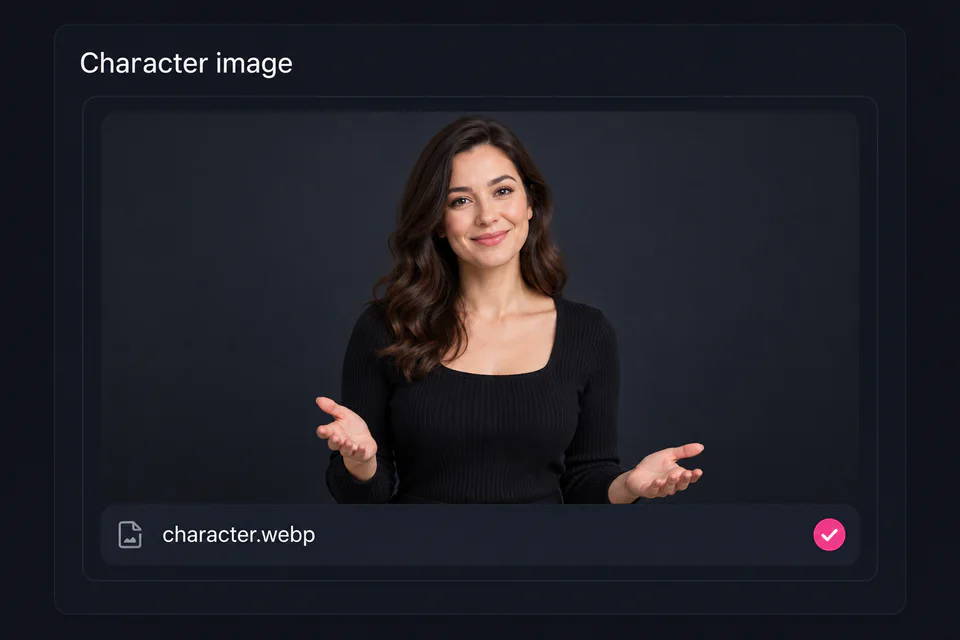
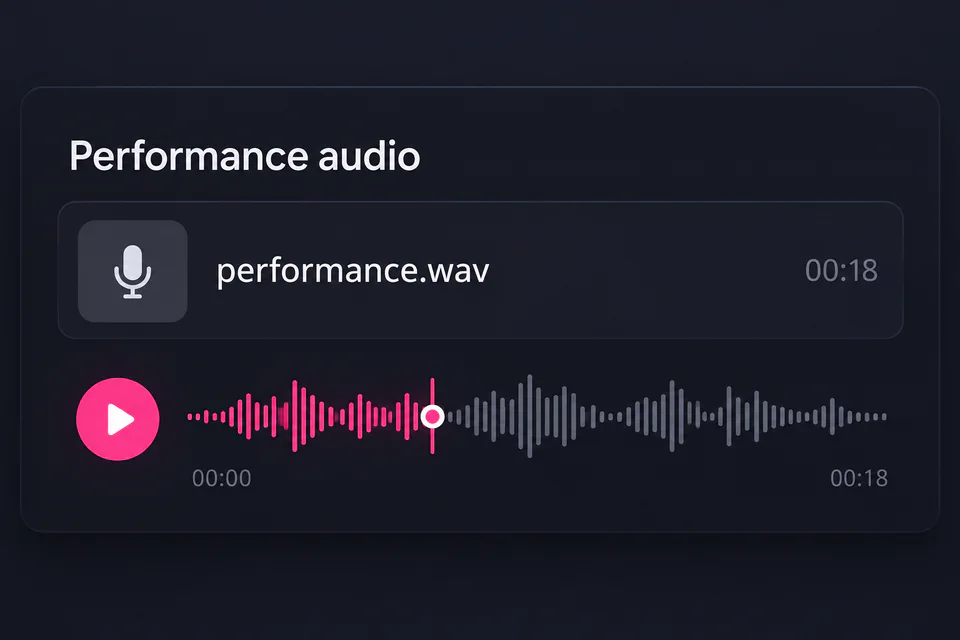
Upload a character image and audio track. Add optional instructions to guide the performance.

01

Upload an Image

Upload a clear reference image

02

Upload Audio

03

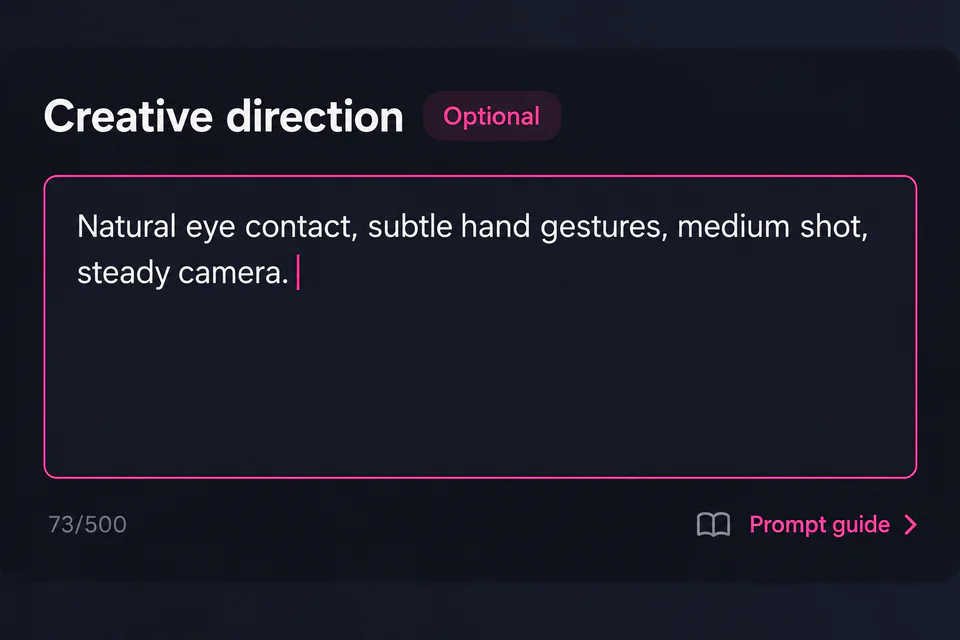
Describe the Action Optional

Try: No Prompt · Character Motion · Camera Motion0/500
Original input examples

OmniHuman 2.0 Video Examples

Watch OmniHuman 2.0 video examples and compare AI lip sync, facial expressions, body motion, singing performance and character consistency.

Precise Lip Sync

Watch the mouth shapes on fast phrases, natural pauses and emphasized words to see whether every sound stays aligned.

Result notes

The generated mouth movement stays closely aligned through the pace change and deliberate pause. The quickest consonant transitions remain the most useful area to inspect at full playback speed.

Stable Object Interaction

Check whether the bottle keeps its shape and position as the hand lifts and lowers it, without warping, slipping or flickering.

Result notes

The bottle keeps a consistent overall shape and remains connected to the hand through the lift, turn and lowering sequence. Finger contact and object edges should still be checked frame by frame during the rotation.

Singing Performance

Watch how sustained notes, breaths and lyric timing remain synchronized while expression and body rhythm build with the music.

Result notes

Sustained vowels remain visually connected to the vocal line while expression and body rhythm build with the music. Fast lyric transitions and short breaths are less precise than the held notes.

Natural Body Motion

Focus on how pointing, open-hand gestures, head movement and posture follow the meaning without looking repetitive or disconnected.

Result notes

Gestures follow the spoken cues with coherent head and posture changes instead of repeating one motion. Fine hand and finger transitions may appear less stable during the fastest movement.

Expressive Facial Performance

Look for subtle eye focus, eyebrow response, blinking and changes around the mouth that match the speaker’s tone and intent.

Result notes

Eye focus, blinking and eyebrow movement support the change in tone without becoming exaggerated. Quieter phrases produce subtler cheek and mouth motion than the more emphatic lines.

Stylized Character Animation

Observe whether the soft-clay surfaces, friendly face and character identity stay consistent through lip sync, leaf movement and articulated hand gestures.

Result notes

The character identity, rounded proportions and soft-clay appearance remain recognizable while the face, leaf and hands animate together. Small facial and joint details may soften when several motions overlap.

Meet the model

What Is OmniHuman 2.0?

OmniHuman 2.0 is an audio-driven AI video generation model from ByteDance.

It turns a single reference image and an audio track into a video of the depicted subject speaking, singing, or performing movements. An optional text prompt can guide character actions, expressions, and camera movement.

Try OmniHuman 2.0 Online
Reference image
Audio track
Motion prompt
Generated OmniHuman 2.0 character video exampleGenerated video
More than lip sync

Key Features of OmniHuman 2.0

Explore how OmniHuman 2.0 uses audio and text prompts to create expressive character performances, guide movements, and control scenes.

Lip-Synced Speech and Singing

Use speech or singing audio to drive mouth movements and character performances. Turn a reference image and audio track into an animated video.

Audio-Aware Character Actions

Generate character actions based on the meaning of spoken audio. Characters can show objects, respond to dialogue, or react to others without an additional text prompt.

Prompt-Guided Scene Control

Use text prompts to guide character movements, camera angles, and background events. Describe multiple actions in sequence to direct how a scene unfolds.

Emotion-Aware Performances

Generate facial expressions and physical reactions that reflect emotions in speech and dialogue. Guide how characters respond as the tone of a scene changes.

Multi-Person Scene Animation

Animate multiple people within the same scene. Use prompts to specify who should speak while other characters move and react naturally in the background.

Diverse Subjects and Styles

Animate a variety of subjects, including people, cats, dogs, and stylized characters. Create audio-driven performances from different types of reference images.

The creation process

How to Use OmniHuman 2.0

Create an AI character video in four simple steps. Start with an image and audio, add optional instructions, and generate your video online.

Upload a Reference Image interface in the OmniHuman 2.0 video generator
01

Upload a Reference Image

Upload a clear image of the person, animal, or stylized character you want to animate. Choose an image that meets the supported file requirements and clearly shows the subject.

Add Your Audio interface in the OmniHuman 2.0 video generator
02

Add Your Audio

Upload a speech recording, dialogue clip, or singing track. The audio provides the voice or performance for your generated video. Make sure the file meets the supported format, size, and duration limits.

Add a Motion Prompt (Optional) interface in the OmniHuman 2.0 video generator
03

Add a Motion Prompt (Optional)

Describe the actions, expressions, or camera movement you want to see. Use clear, sequential instructions to guide the performance. You can leave the prompt blank and let the audio guide the character's performance.

Generate and Download Your Video interface in the OmniHuman 2.0 video generator
04

Generate and Download Your Video

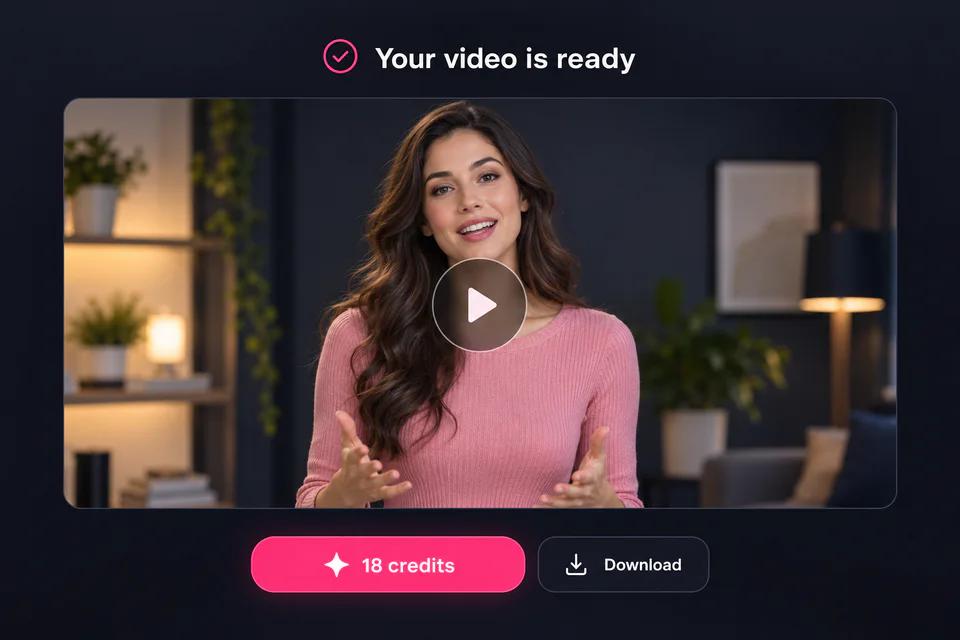
Review your uploaded files, confirm the input duration and displayed credit cost, and start generation. When processing is complete, preview your video and download the result if it meets your needs.

Creative possibilities

What Can You Create with OmniHuman 2.0?

Explore practical ways to turn reference images and audio into videos for social media, education, storytelling, marketing, and creative projects.

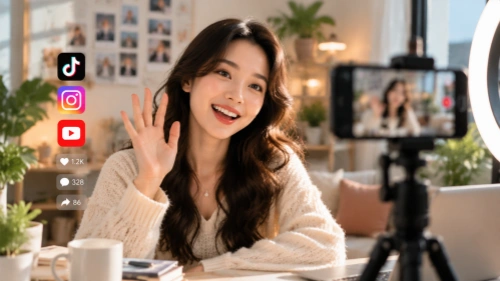
Creator recording a voice-led social media video in a home studio

Create Social Media Videos from Audio

Turn an existing voice recording and character image into short-form video content for social platforms. Add a concise prompt to shape the presentation, then use the generated clip as a starting point for creator updates, personal stories, or voice-led posts.

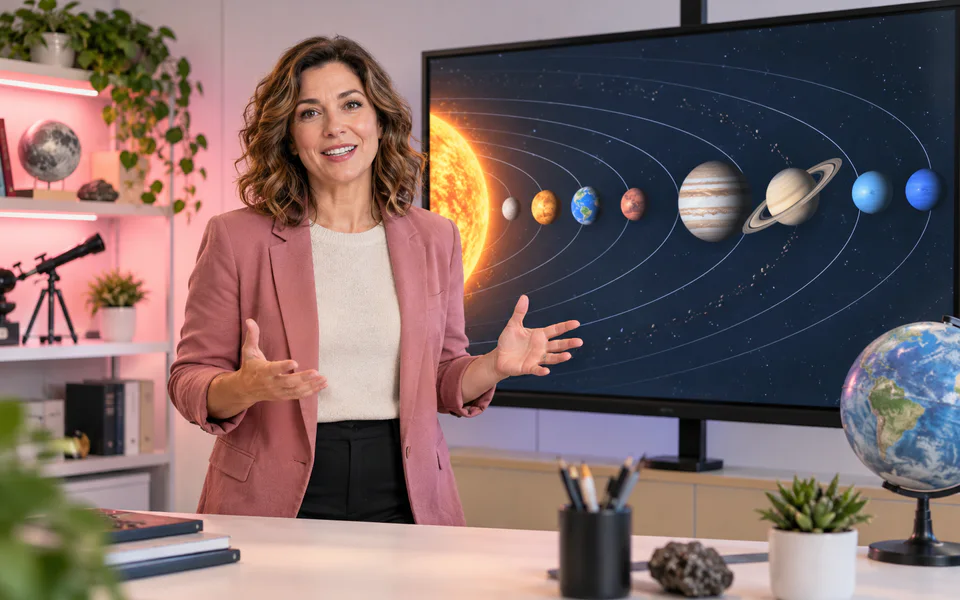
Educator presenting a solar-system lesson for an explainer video

Create Educational Explainer Videos

Pair a reference image with lesson narration to create a presenter-led explainer. Use a prompt to guide the presentation and visual actions, giving educators and content teams another way to turn prepared scripts into video lessons without filming every segment.

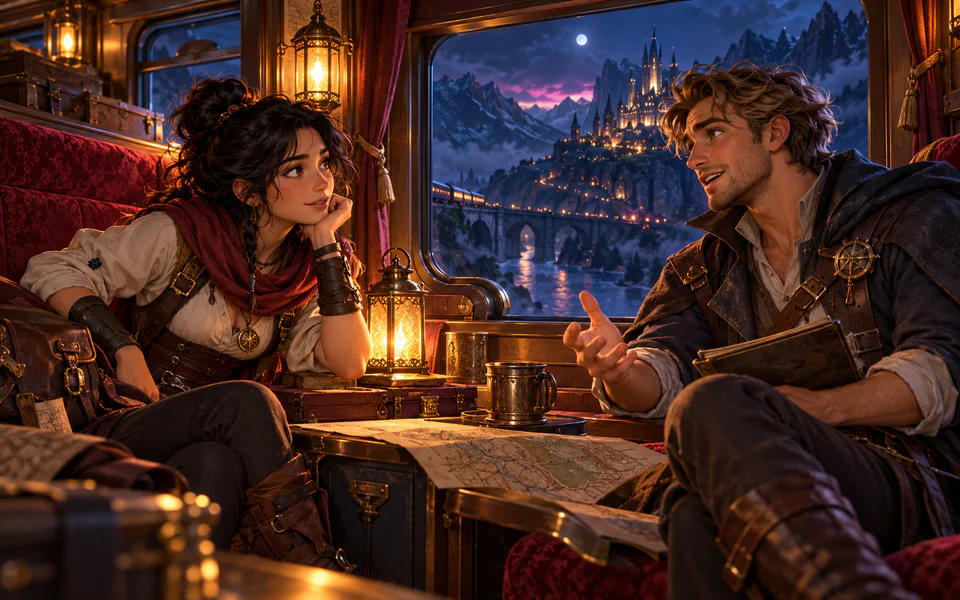
Original fantasy characters developing a dialogue-driven story scene

Develop Character-Driven Stories

Combine character images with dialogue audio to develop scenes for original stories, fictional conversations, or serialized content. Use prompts to guide the intended actions, then review the generated clip as a draft for a larger character-led narrative.

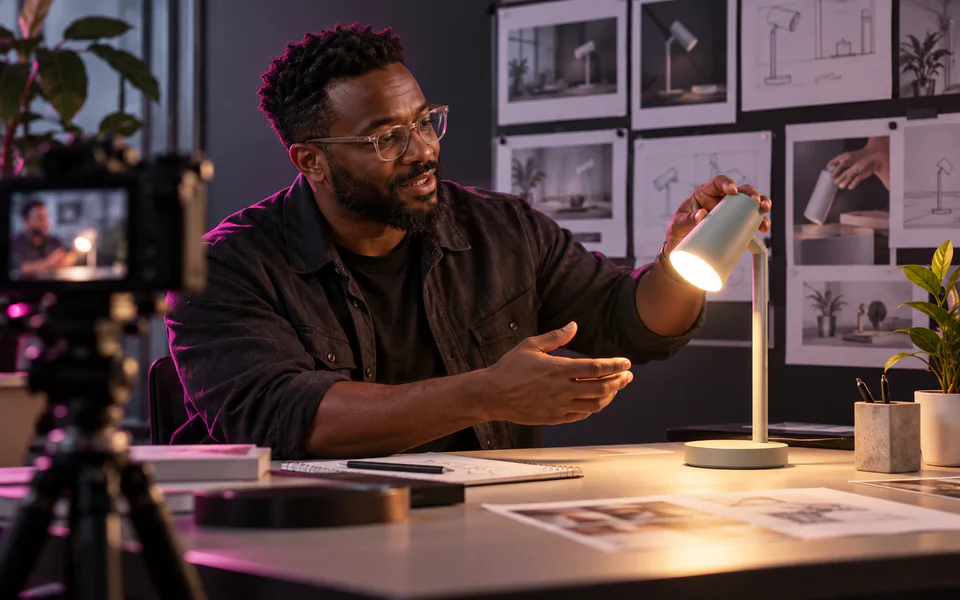
Product designer presenting a desk lamp in an early video advertisement concept

Prototype Video Ad Concepts

Explore early video ad ideas by pairing a suitable character image with campaign narration or dialogue. Generate a draft to evaluate the creative direction before investing in a full shoot, detailed editing, or final campaign production.

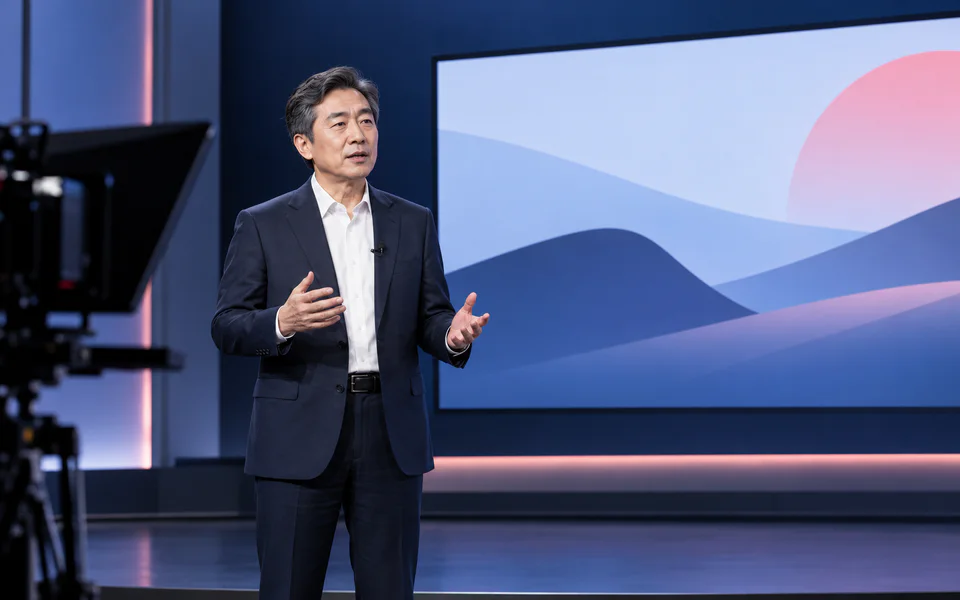
Professional presenter recording an internal announcement in a studio

Produce Presenter-Style Content

Turn a prepared script into presenter-style content using a reference image and recorded narration. Add optional instructions for gestures or framing, then use the generated video as a draft for announcements, internal explainers, or educational presentations.

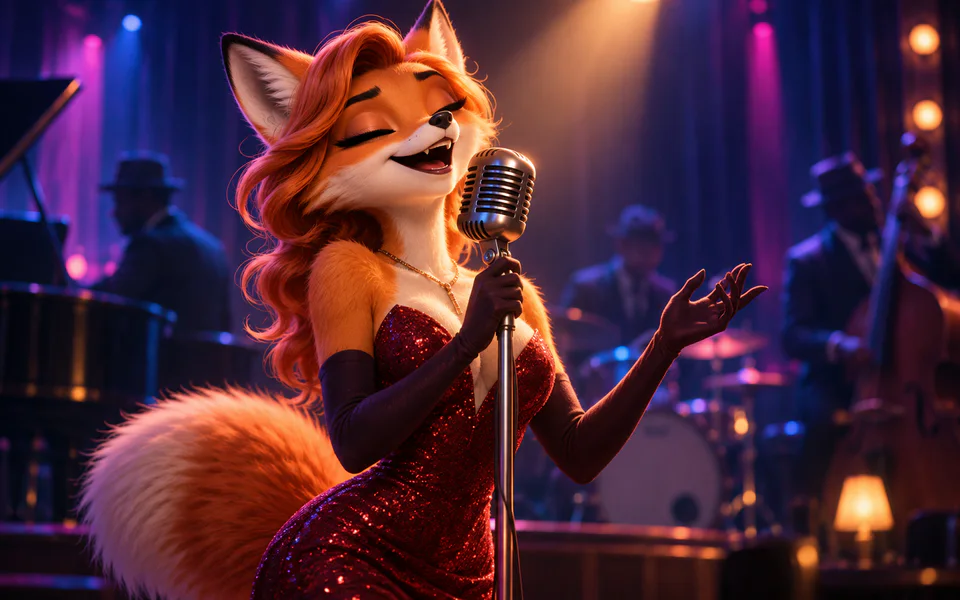
Original stylized fox vocalist performing music-led character content

Create Music-Led Character Content

Pair a character image with a song or vocal track to create music-led clips for music promotion, creative concepts, or entertainment posts. Use the generated result to explore a visual direction for a track before developing a finished music video.

Best practices

Tips for Better OmniHuman 2.0 Videos

Prepare a clear reference image and clean audio, write focused motion prompts, and test complex actions with shorter clips before creating longer OmniHuman 2.0 videos.

Create a Video
01

Start with a Clear Reference Image

Use a sharp, well-lit image with visible facial details. Avoid heavy blur, extreme viewing angles, or very small faces. A clear reference gives the model better visual information to work with.

02

Use Clean, Clearly Recorded Audio

Use a clear voice or singing track with low background noise and minimal overlap from other speakers. Clean audio gives the model stronger timing, rhythm, and emotion cues for lip sync and character movement.

03

Keep the Character Clearly Visible

Choose an image that makes the character's face easy to see. Very distant shots may reduce lip-sync reliability. If the mouth does not move as expected, try a closer reference image or simplify the camera instructions.

04

Describe Actions in a Clear Sequence

Write prompts as a short series of events. Explain what the character does first, what happens next, and how the scene ends. Avoid conflicting instructions or too many unrelated movements in one prompt.

05

Keep Important Characters in Frame

Keep the main character visible throughout the scene when facial and visual consistency matter. Repeatedly moving out of frame and reappearing later may lead to changes in appearance. Use simpler camera paths when character consistency is important.

06

Start with Shorter Tests

Test complex movements, camera changes, or multi-character scenes with shorter clips before attempting longer generations. Short tests make it easier to evaluate motion, framing, and character consistency before spending credits on a longer generation.

Pricing

OmniHuman 2.0 Pricing

Choose the credit pack that fits your workflow, pay once and create whenever inspiration arrives.

Starter

$10one-time

Designed for regular creators who need more credits and flexibility to explore OmniHuman 2.0 features.

  • ✓First-time users
  • ✓short clips
  • ✓personal projects.
  • ✓HD video generation
  • ✓lip-sync & body animation
  • ✓download enabled
  • ✓email support

Credits work with OmniHuman 1.5 and 2.0. Both use 1 credit per second of generated video.

Pro Studio

$80one-time

All-inclusive plan with maximum credits, built for studios and businesses with heavy video needs.

🎁 +50 bonus credits · Save 31.25%

  • ✓Studios
  • ✓large-scale content
  • ✓high-quality productions.
  • ✓HD video generation
  • ✓lip-sync & body animation
  • ✓download enabled
  • ✓commercial use license
  • ✓priority support
  • ✓best value per credit
  • ✓bulk processing.

Credits work with OmniHuman 1.5 and 2.0. Both use 1 credit per second of generated video.

Answers

OmniHuman 2.0 FAQ

Find answers about using OmniHuman 2.0 online, free credits, supported files, prompts, video length, troubleshooting, commercial use and privacy.

Try OmniHuman 2.0 →
01How can I use OmniHuman 2.0 online?+

Upload a reference image and an audio track, then add an optional text prompt to guide character actions or camera movement. Review your settings and the displayed credit cost, then start generating your video.

02Can I try OmniHuman 2.0 for free?+

Yes. New users receive free credits when they register and can use them to try video generation. If you want to create more videos after using your available credits, you can purchase a credit pack.

03What files can I upload?+

You can upload JPG, PNG, WebP, BMP, TIFF, GIF, HEIC, or HEIF images under 30 MB. Images must be 300–6,000 pixels wide and tall, with an aspect ratio between 0.4 and 2.5. Audio files must be in WAV or MP3 format, under 15 MB, and between 4 and 300 seconds long.

04Do I need a text prompt to generate a video?+

No. A text prompt is optional. Upload a reference image and an audio track to generate a video. You can add a prompt to guide character movements, expressions, or camera direction when you need more control.

05How long can OmniHuman 2.0 videos be?+

OmniHuman 2.0 can generate videos up to 5 minutes long. The final video duration depends on the input audio and the generation settings available on this platform.

06Why isn't my character's mouth moving?+

A distant face, unclear audio, or an extreme viewing angle may affect mouth movement. Try uploading a sharper image with a larger, clearly visible face. Use a clean audio recording and simplify the camera instructions. If the issue continues, test a shorter clip with fewer actions.

07What happens if video generation fails?+

The credit cost is displayed before generation begins. If generation fails or is blocked, all reserved credits are returned to your account.

08Can I use generated videos commercially?+

Yes, you can use videos generated with OmniHuman 2.0 for commercial projects, including marketing content, product promotions, and social media campaigns, subject to our Terms of Service. Make sure you have the necessary rights to all uploaded images, audio, and other reference materials. You are responsible for ensuring your final content complies with applicable laws and third-party rights.

09What is the difference between OmniHuman 1.5 and 2.0?+

Both versions support audio-driven character animation and optional text prompts. OmniHuman 2.0 accepts longer audio inputs and larger image files, with an emphasis on more flexible character and camera direction. Actual video quality depends on the source materials and scene complexity.

10Are my uploaded images and audio private?+

Your uploaded images, audio, prompts, and generated videos are used to provide the video generation service. Some files may be processed by third-party AI model and infrastructure providers to generate your videos. We do not sell your personal data, and you can delete your stored files and generation history through your account, subject to our Privacy Policy.
Start creating

Create Your First Character Video

Turn one character image and voice track into an expressive AI video with synchronized lip movement, facial emotion and natural body motion.

Create a video ↗