Create AI Multi-Person Dialogue Videos with OmniHuman 2.0
OmniHuman 2.0 is available now.
This guide explains how to create AI multi-person dialogue videos with OmniHuman 2.0. The instructions use two speakers, but the same principles of audio preparation, character layout, and turn-taking apply when planning scenes with more participants.
TL;DR: AI Multi-person Dialogue Video Guide
Prepare one scene image and one complete dialogue track. Keep faces visible and speaking turns easy to distinguish.
Direct both speaking and listening. Eye contact, pauses, and restrained reactions help the conversation feel connected.
Test a representative exchange first. Check who speaks, who listens, and what happens during each handoff.
Build a format you can develop. Original questions and recurring host personalities give a video podcast value beyond a single generated clip.
Start OmniHuman 2.0 Generator NOW
Why OmniHuman 2.0 Fits Dialogue Videos
Give recorded voices a visible performance.
OmniHuman 2.0 uses a reference image and audio to generate character performance, with optional text instructions for further direction.
Three capabilities are particularly useful for dialogue:
Audio-aware expression: Rhythm, tone, and meaning provide cues for facial expression and movement.
Flexible performance direction: Prompts let you request speaking turns, listening reactions, gestures, and camera behavior.
Room for longer exchanges: The platform accepts audio up to five minutes, giving you space to develop a discussion beyond a brief sound bite.
Use that flexibility selectively. A clear exchange with readable reactions is a strong starting point for a longer conversation.
Plan a Conversation Worth Watching
Give every exchange a reason to continue.
Choose one topic and decide what each participant contributes. A host might ask and challenge; a guest might explain and clarify.
Build a simple progression: question → response → follow-up or conclusion.
Start where the subject becomes understandable and end when the thought is complete. Avoid packing unrelated topics into one AI dialogue video.
Prepare Podcast Audio for Clear Speaking Turns
Let the audio make each turn clear.
To turn podcast audio into video, select a self-contained exchange and prepare one mixed audio file containing all speakers in order.
Before uploading:
Keep the question or context needed to understand each answer.
Balance voice levels so quieter replies remain audible.
Preserve natural pauses, breaths, and useful emotional cues.
Reduce distracting noise and prolonged overlapping speech.
Record or edit the conversation beforehand, then export an MP3 or WAV.
The uploaded audio supplies the spoken words; the motion prompt guides the performance.
Build a Clear Multi-Character Scene
Make every speaker easy to recognize.
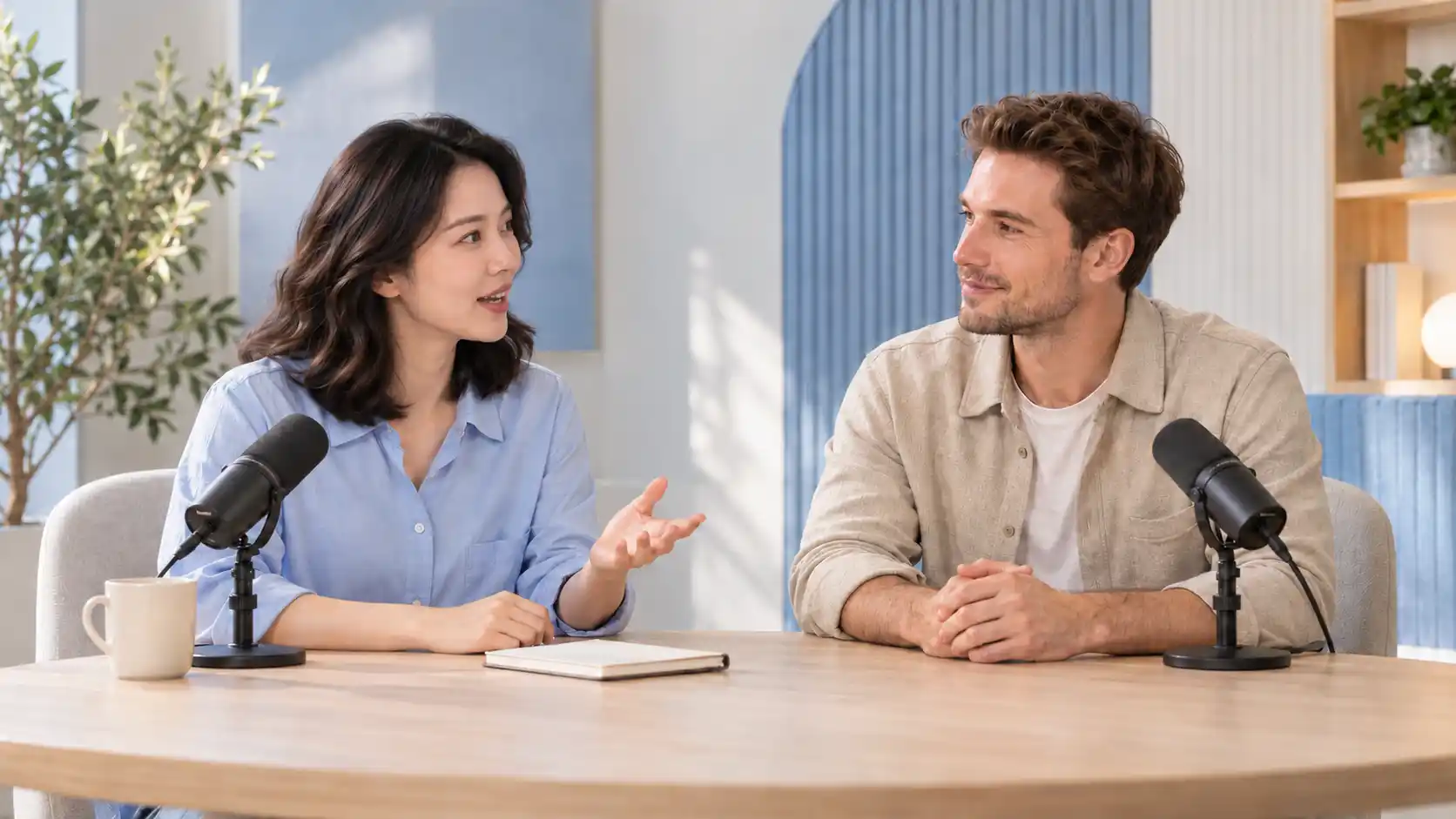
Prepare one image showing the participants together. The composition should make it easy to see who is speaking and how the others respond.
Frame the Faces and Interaction
Use this multi-person reference checklist before generation:
Readable faces: Give every participant enough space and facial detail. Keep mouths clear of microphones, hands, and hair.
Balanced scale: Position speakers at similar distances from the camera when possible.
Comfortable angles: Use front-facing or moderate three-quarter views rather than extreme profiles.
Gesture space: Include the upper body and hands if you plan to request visible gestures.
A medium two-shot is a practical starting point: both people remain visible, with enough room to read expressions and small movements.
Make Character Positions Unambiguous
Establish clear left and right positions. In your direction, identify people by visible location or a distinctive clothing detail rather than using names alone.
For scenes with more participants, preserve that clarity. Crowding additional faces into a small frame makes reactions and speaking turns harder to judge. Simplify the composition or divide a complex discussion into smaller scenes when needed.
If you plan to publish vertically, compose for that format early. A later crop should still leave the relevant speaker and listener visible.
Direct Speaking Turns and Natural Reactions
Direct the listener as carefully as the speaker.
A useful dialogue prompt assigns a clear role to each character during each part of the recording.
Focus on three decisions:
Who speaks: Identify the active speaker and when the next person takes over.
Who listens: Request attentive eye contact and restrained reactions from the other participant.
What changes: Connect expressions or gestures to a question, realization, disagreement, or conclusion.
Keep Reactions Connected to Meaning
Choose responses that fit the exchange. A thoughtful pause, a small nod, or a brief change in expression can communicate attention without distracting from the voice.
Avoid asking for continuous nodding, repeated hand movements, or strong emotional changes in every sentence. Reserve emphasis for moments that deserve it.
Motion prompt example:
Use a steady medium two-shot. The woman on the left speaks first while the man on the right listens with his mouth closed and natural eye contact. After the pause, the man replies while the woman listens and gives a small nod. Follow the speaking turns in the uploaded audio. Keep both faces, clothing, and the background consistent.
Adapt the positions and reactions to your image and recording. If the conversation contains several exchanges, describe the important handoffs in order.
Keep the Camera Readable
Begin with a shared view of the participants. Add movement only when it helps reveal an expression or interaction, and keep important faces in frame.
For more ways to phrase movement and expression instructions, see the OmniHuman Prompt Guide.
Generate and Review Your AI Dialogue Video
Check the conversation before polishing the frame.
Open OmniHuman 2.0, upload your scene image and dialogue audio, then add optional performance instructions.
Review the displayed credit cost before generating.
Start with a short section that contains a speaker change and a reaction. This gives you something useful to evaluate before attempting a longer recording.
Review the Exchange with Sound
Play the clip with sound and check these five points:
✅ The right person speaks.
Follow each voice through the handoff. If the wrong character appears to speak, clarify positions and speaking order.
✅ The listener reacts naturally.
Look for attentive eye contact and small, relevant responses. Request quieter reactions if gestures become repetitive or the listener appears to speak.
✅ The interaction makes sense.
Check that looks, pauses, and reactions follow the exchange. Simplify movements that distract from the conversation.
✅ The scene stays consistent.
Watch for changes in faces, clothing, or important objects. Reduce overlapping actions and unnecessary camera movement.
✅ The exchange feels complete.
Make sure the opening provides context and the answer finishes. Adjust the audio boundaries if either feels cut off.
Revise one main issue at a time. Resolve speaker matching and interaction problems before adding more elaborate gestures or camera direction.
Adapt Your Dialogue for Podcasts, Interviews, and Social Clips
Shape the exchange around its audience.
The same multi-character dialogue workflow can serve different formats. Choose the conversation’s purpose first, then make generation decisions around it.
Build an Original AI Video Podcast
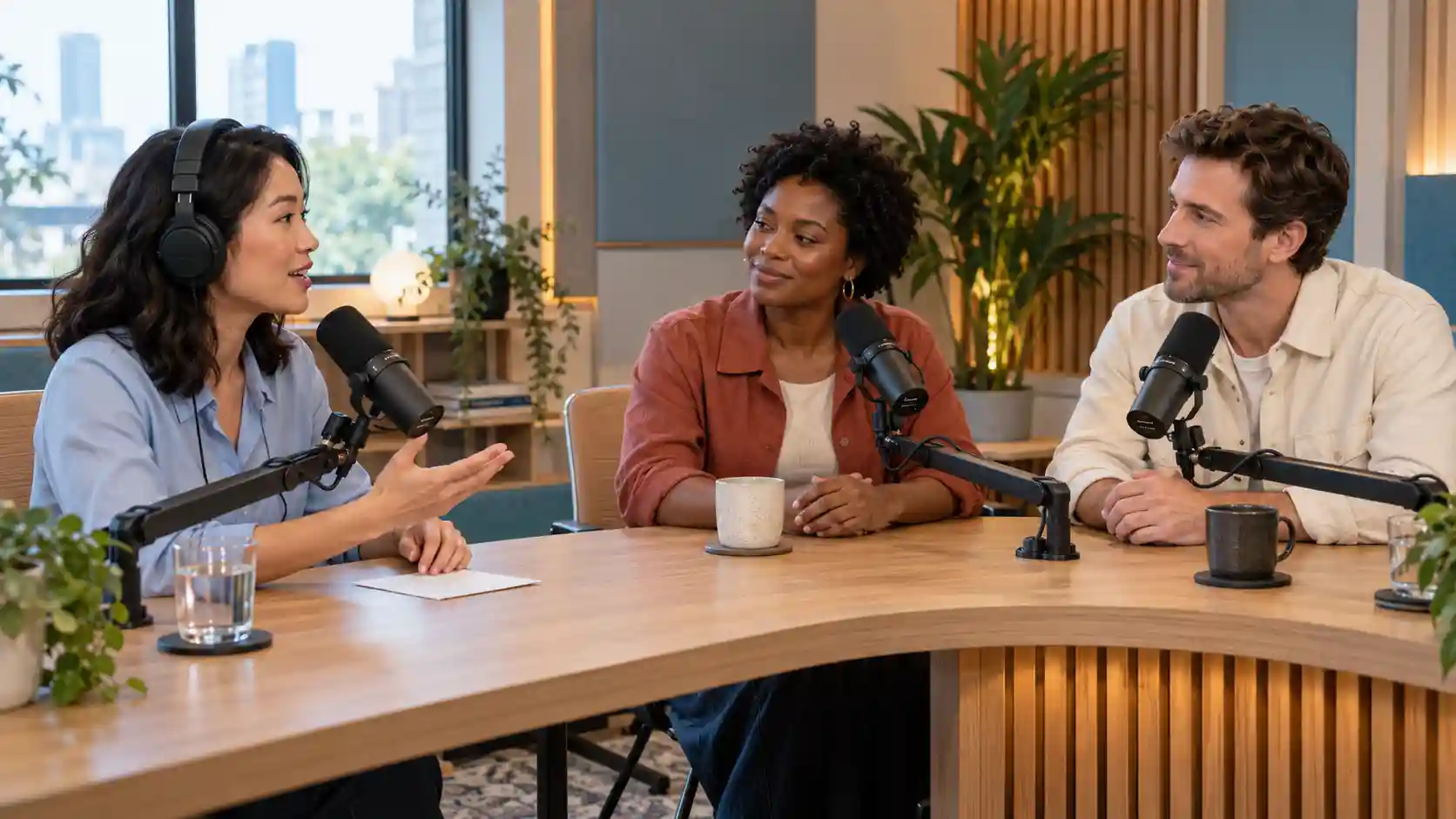
Give the series a recognizable editorial focus: a subject you understand, questions worth answering, and host roles that remain familiar across episodes.
💡 Generation tips:
Keep the host identities and visual setting consistent across related episodes.
Break longer discussions at natural topic boundaries, with complete exchanges in each segment.
Let the shared shot carry the discussion; use changes in expression and delivery to create variety.
❕ Avoid: Repeated generic scripts, interchangeable hosts, and clips that remove the context needed to understand an answer.
For lasting value, keep developing your own questions, research, and point of view.
Use audience questions to plan follow-ups, save a topic list, and revisit earlier ideas when you have something new to add.
Save your scripts, audio, images, and direction notes so the show can evolve consistently.
Keep Interview Highlights Meaningful

An AI interview video should communicate a complete idea, even when the final clip is short.
💡 Generation tips:
Keep enough of the question to establish context, then allow the answer and a natural listening reaction to finish.
Use a reference composition that makes the relationship between interviewer and guest clear.
❕ Avoid: Cutting before the answer resolves, adding constant reaction gestures, or demanding several camera changes during one short reply.
Make Learning Role-Plays Easy to Follow

For language practice or training, give each participant a specific communication goal. Let the exchange progress through a request, response, and confirmation or clarification.
💡 Generation tips: Use measured pacing and clear pauses where a learner needs time to understand the response. Keep gestures tied to the meaning of the dialogue.
❕ Avoid: Overlapping voices, long monologues, and visual effects that distract from the words.
Give Fictional Characters a Reason to Respond

Character dialogue becomes more engaging when each person wants something from the exchange. Their expressions and reactions should reflect that relationship.
💡 Generation tips:
Define the emotional direction of the scene and request a few meaningful changes in expression.
Keep distinctive clothing and character features visible.
❕ Avoid: Unrelated gestures, abrupt emotional swings, or complex physical action competing with the dialogue.
For social distribution, select an opening that makes sense immediately and retain a complete response. Add captions, crops, or further cuts in your video editor after reviewing the generated performance.
Create Your Multi-Person Talking Video with OmniHuman 2.0
Start with an exchange you can clearly direct.
Choose a focused conversation, prepare a readable scene image, and give the recording clear speaking turns.
Use the first version to refine how the participants respond to each other, then build on the format with new questions and original conversations.
OmniHuman 2.0 Dialogue Video FAQs
Do I need a separate audio file for each speaker?
No. Prepare one mixed audio file containing the speakers in the intended order. Upload it with an image showing the participants, and use optional instructions to clarify their roles.
Can I generate the dialogue by typing a script?
You need an audio recording of the dialogue. You can record it yourself or prepare voices with a separate audio tool. The optional text prompt directs movement and expression; it does not create the speech.
Can I use animated characters instead of real people?
Yes. You can work with illustrated or stylized characters. Choose designs with readable faces and check how their mouth shapes and expressions animate.
Can these techniques be used with more than two characters?
The same preparation and direction principles apply to larger scenes. Give each participant a clear visual identity and speaking role, then check the result carefully as the number of interactions increases.
Related Articles
What is OmniHuman 1.5? Exploring the Next Generation of AI Avatar
OmniHuman 1.5 by ByteDance generates semantically coherent and expressive character animations, creating virtual humans with early form of cognition and mind.
Improve OmniHuman 1.5 Talking Avatars: Better Lip Sync, Less Face Drift, More Realism
A practical OmniHuman 1.5 playbook to improve lip sync accuracy, reduce face/identity drift, and make talking head videos feel human with repeatable steps and prompts.